
Cara membaca tabel hasil Shopee Scraper: omzet, stok, biaya, komisi, dan detail produkHow to read the Shopee Scraper results table: revenue, stock, fees, commission and product details
Penjelasan setiap kolom dan tombol pada tabel hasil riset, plus popup detail produk, supaya Anda tahu angka mana yang perlu diperhatikan.
An explanation of every column and button in the results table, plus the product detail popup, so you know which numbers to watch.
Di halaman ini
Tabel hasil memuat banyak angka. Panduan ini menjelaskan apa arti masing-masing kolom dan tombol, serta bagaimana memakainya untuk mengambil keputusan.
Screenshot di panduan ini memakai data contoh agar mudah dibaca. Angka dan nama toko di akun Anda akan berbeda.
Toolbar di atas tabel

- Semua kata kunci / toko: lihat hasil satu pencarian saja atau semuanya
- Cari dalam hasil produk: menyaring berdasarkan nama
- Urutan: ubah urutan (bawaannya urutan asli Shopee), misalnya menurut omzet atau terjual
- Filter: menyaring hasil yang sudah terkumpul
- Pantau pilihan / Pantau semua: memasukkan produk ke Monitoring
- Unduh CSV: menyimpan hasil ke file (panduan ekspor)
- Hapus terpilih: membuang baris dari daftar ini
Kolom pada tabel
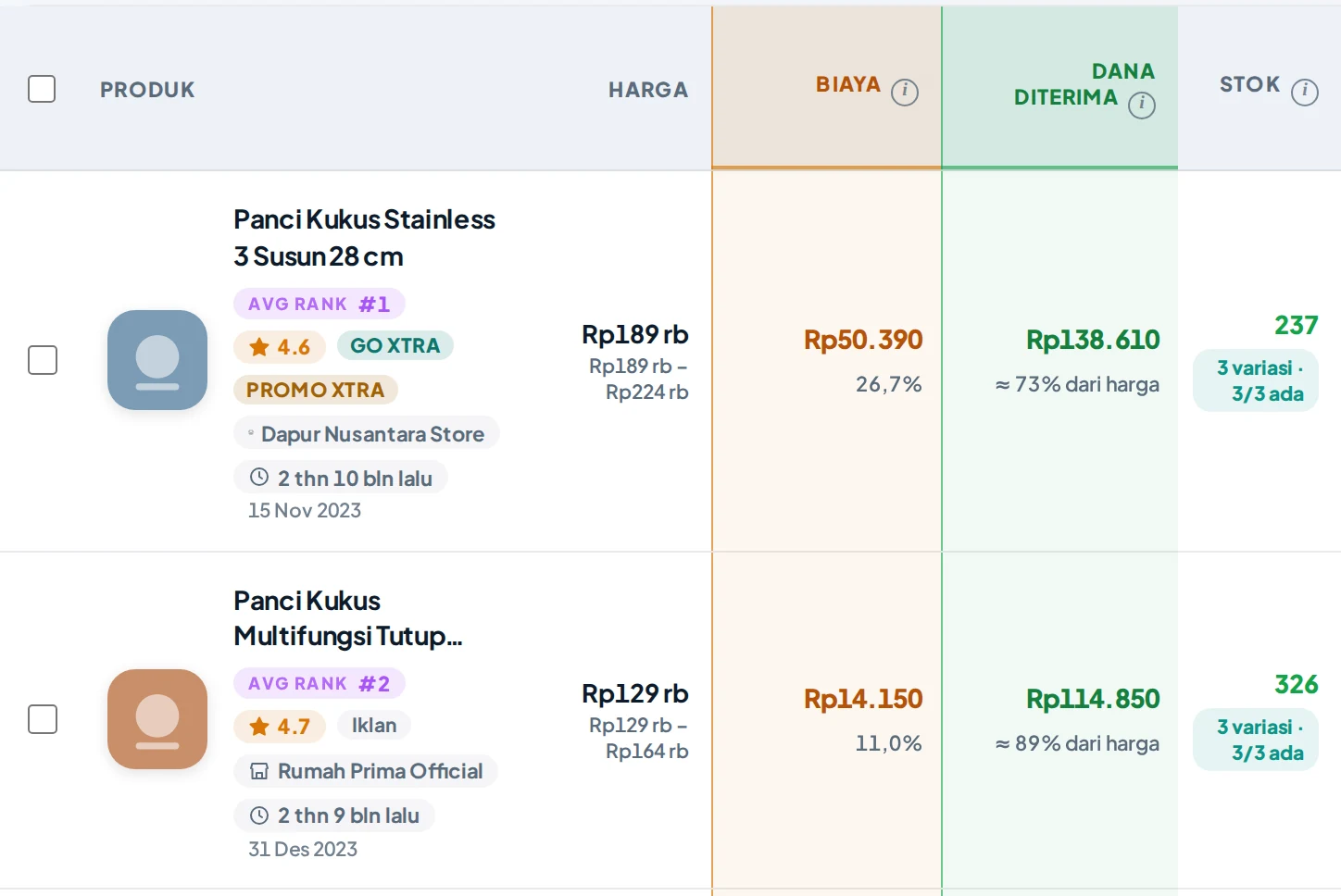
Sisi kiri tabel: identitas produk, harga, biaya, dana diterima, dan stok.
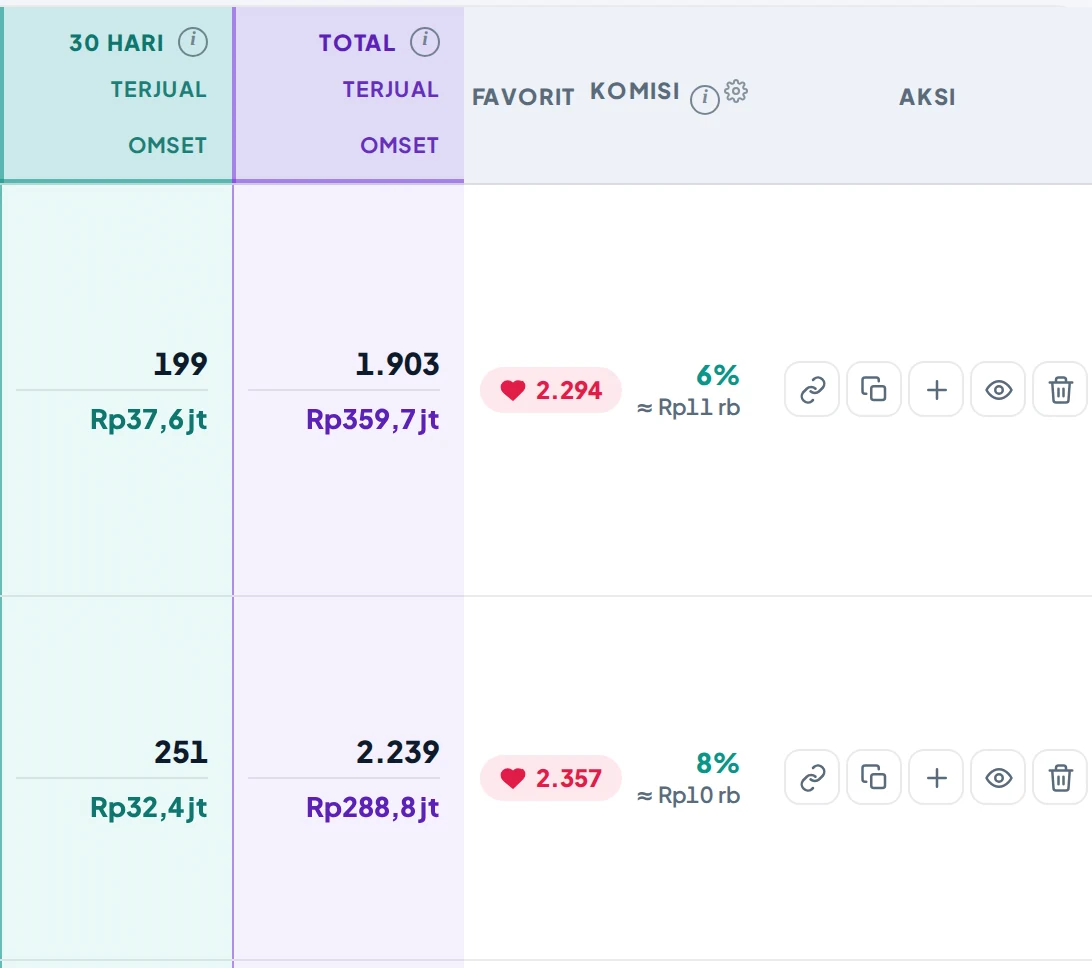
Sisi kanan tabel: penjualan, favorit, komisi, dan tombol aksi.
| Kolom | Isinya |
|---|---|
| Produk | Foto, nama, Avg Rank, rating, label program (mis. Gratis Ongkir XTRA, Promo XTRA), nama toko, dan umur produk |
| Harga | Harga saat ini, dengan rentang bila ada variasi |
| Biaya | Estimasi biaya marketplace per unit terjual |
| Dana diterima | Perkiraan uang yang masuk ke penjual setelah biaya |
| Stok | Total stok dan jumlah variasi yang tersedia |
| 30 hari | Terjual dan estimasi omzet 30 hari terakhir |
| Total | Terjual dan estimasi omzet sepanjang waktu |
| Favorit | Berapa kali produk difavoritkan |
| Komisi | Komisi affiliate (lihat catatan di bawah) |
Kolom Komisi terisi setelah Anda mengambilnya lewat ekstensi (tombol Ambil Komisi di overlay Shopee). Sebelum itu tampil tanda strip (–).
Umur produk membantu membaca omzet: produk berumur 2 tahun dengan total terjual besar belum tentu laris sekarang. Lihat kolom 30 hari untuk kondisi terkini.
Tombol di kolom Aksi
- Buka di Shopee dan Salin link
- Pantau ke Monitoring (tanda +)
- Lihat detail lengkap (ikon mata)
- Hapus dari daftar
Popup detail produk
Klik ikon mata untuk membuka KASKOW Insight Produk.
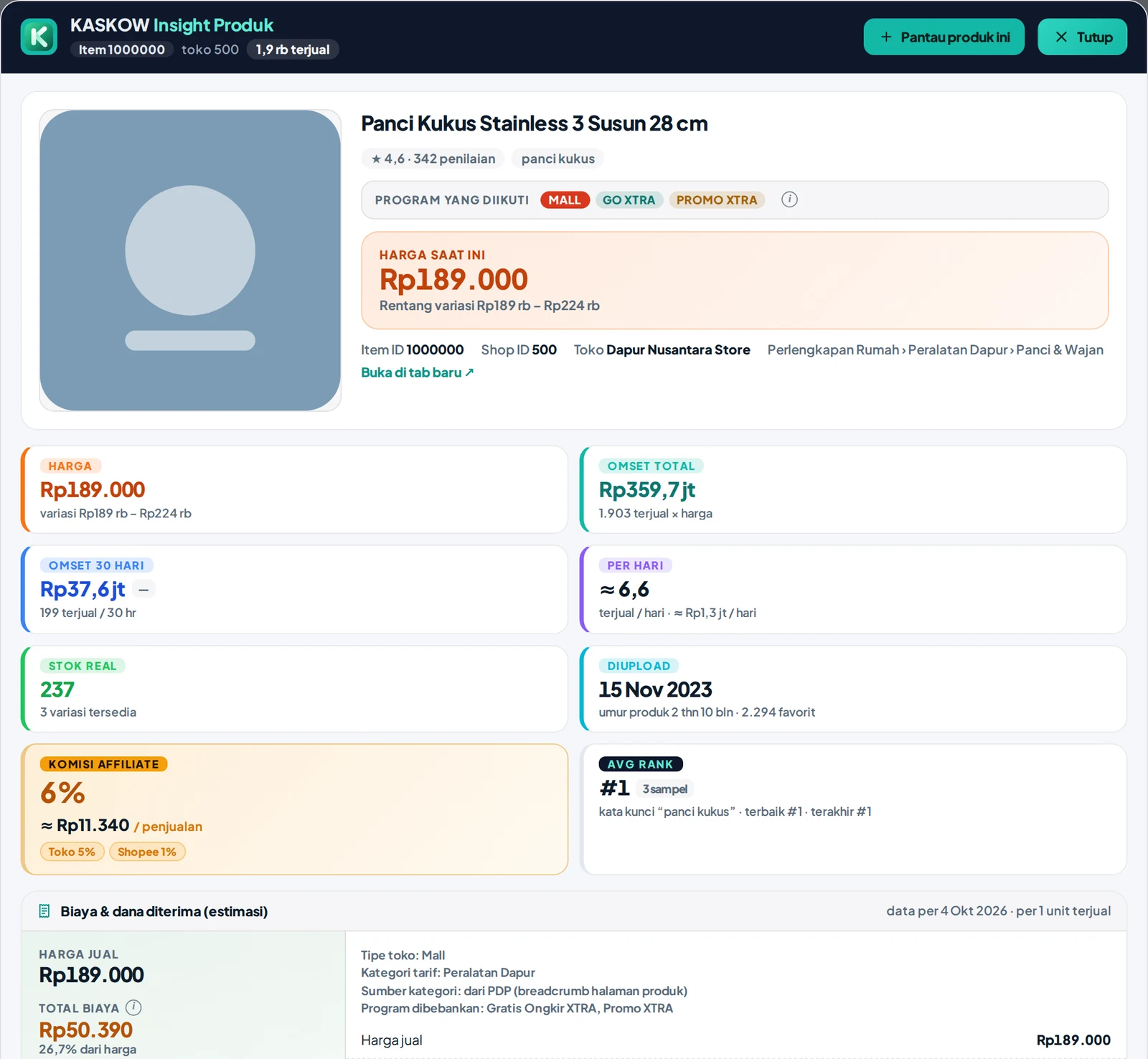
Popup ini merangkum harga dan rentang variasi, omzet total dan 30 hari, perkiraan terjual per hari, stok real, tanggal upload, komisi, serta rincian biaya dan dana diterima per unit. Bagian yang datanya belum ada akan disembunyikan.
Rincian biaya adalah perkiraan per pesanan (1 unit) berdasarkan ketentuan Shopee pada tanggal yang tertera. Biaya iklan, voucher, dan ongkir yang ditanggung penjual belum termasuk. Cek Seller Centre untuk angka resmi.
The results table holds a lot of numbers. This guide explains what each column and button means, and how to use them to make decisions.
Screenshots in this guide use sample data for readability. The numbers and shop names in your account will differ.
The toolbar above the table
- All keywords / shops: view one search only or everything
- Search in results: filter by name
- Sort: change the order (default is Shopee's original order), for example by revenue or units sold
- Filter: narrow the results already collected
- Pantau pilihan / Pantau semua (Monitor selected / all): add products to Monitoring
- Unduh CSV (Download CSV): save results to a file (export guide)
- Hapus terpilih (Delete selected): remove rows from this list
Table columns
Left side of the table: product identity, price, fees, funds received and stock.
Right side of the table: sales, favorites, commission and action buttons.
| Column | Contents |
|---|---|
| Produk (Product) | Photo, name, Avg Rank, rating, program labels (e.g. Free Shipping XTRA, Promo XTRA), shop name and product age |
| Harga (Price) | Current price, with a range when there are variations |
| Biaya (Fees) | Estimated marketplace fees per unit sold |
| Dana diterima (Funds received) | Estimated money the seller receives after fees |
| Stok (Stock) | Total stock and number of available variations |
| 30 hari | Units sold and estimated revenue over the last 30 days |
| Total | Units sold and estimated revenue all-time |
| Favorit | How many times the product was favorited |
| Komisi (Commission) | Affiliate commission (see note below) |
The Komisi column is filled once you fetch it through the extension (the Get Commission button in the Shopee overlay). Until then it shows a dash (–).
Product age helps read revenue: a 2-year-old product with a large total sold is not necessarily selling well now. Look at the 30 hari column for the current situation.
Buttons in the Actions column
- Open on Shopee and Copy link
- Add to Monitoring (the + sign)
- View full details (eye icon)
- Delete from the list
Product detail popup
Click the eye icon to open KASKOW Insight Produk.
The popup summarizes price and variation range, total and 30-day revenue, estimated units sold per day, real stock, upload date, commission, and a fee and funds-received breakdown per unit. Sections with no data are hidden.
The fee breakdown is an estimate per order (1 unit) based on Shopee's terms on the date shown. Ad spend, vouchers and shipping borne by the seller are not included. Check Seller Centre for official figures.