
Mengelola daftar perangkat di KASKOW Remote: Tersimpan, Perangkat Saya, dan status onlineManaging the device list in KASKOW Remote: Saved, My Devices and online status
Simpan komputer yang sering Anda buka, lihat mana yang online, dan sambung dengan satu ketukan. Daftarnya ikut akun Anda ke perangkat mana pun.
Save the computers you open often, see which are online, and connect with one tap. The list follows your account to any device.
Di halaman ini
Jika Anda sering membuka komputer yang sama, mengetik ID 9 digit dan password setiap kali merepotkan. Daftar perangkat membuatnya cukup satu klik.
Screenshot memakai tampilan contoh (nama perangkat dan ID fiktif) agar mudah dibaca. Tampilan di perangkat Anda akan berbeda.
Dua tab di halaman viewer
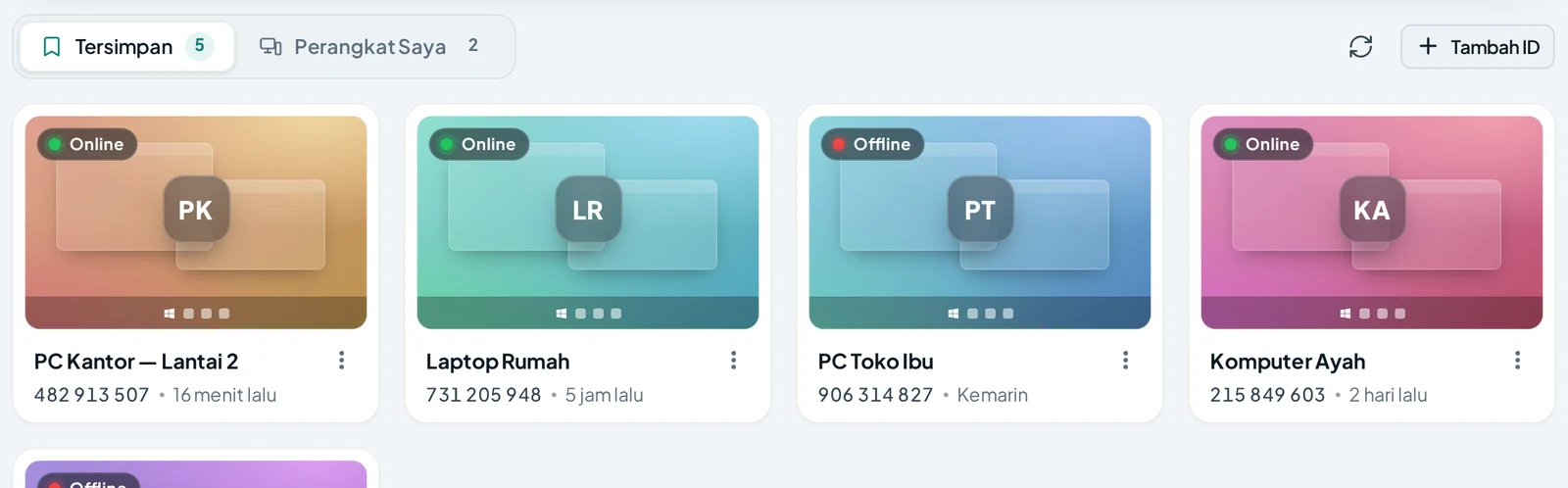
| Tab | Isinya |
|---|---|
| Tersimpan | Perangkat yang Anda simpan saat menyambung |
| Perangkat Saya | Komputer yang aplikasinya terhubung ke akun KASKOW Anda |
Setiap kartu menunjukkan nama, ID, ikon sistem operasi, kapan terakhir dipakai, serta status Online atau Offline. Ikon Perbarui status online memeriksa ulang keadaannya.
Menyimpan perangkat
- Masukkan ID dan password seperti biasa.
- Centang Simpan perangkat ini.
- Klik Hubungkan.
Perangkat muncul di tab Tersimpan. Kartu yang password-nya ikut tersimpan diberi tanda tersimpan, sehingga Anda cukup mengetuk kartu untuk menyambung.
Anda juga bisa menambahkan ID tanpa menyambung dengan tombol Tambah ID.
Mengatur satu kartu
Klik titik tiga di kartu untuk membuka opsi, seperti mengganti nama atau menghapus dari daftar. Ganti nama membantu bila Anda punya banyak komputer yang mirip: "PC Kantor", "Laptop Rumah", "PC Toko".
Mengikuti akun Anda
Daftar ini tersinkron ke akun KASKOW. Saat Anda masuk di laptop lain atau HP, perangkat yang sama muncul di sana tanpa mengetik ulang.
Karena password ikut tersimpan di akun, masuklah hanya di perangkat yang Anda percaya, dan keluar dari akun di komputer umum. Hapus perangkat dari daftar bila tidak lagi dipakai.
Perangkat Offline
Offline berarti aplikasi di komputer tujuan tidak berjalan atau komputernya mati/tidur. Anda tidak bisa menyambung sebelum komputer itu menyala dan aplikasinya aktif. Agar komputer siap kapan saja, nyalakan Jalankan saat Windows menyala di pengaturan aplikasi.
Di aplikasi Windows
Aplikasi di komputer juga punya daftar serupa dengan tab Terbaru, Favorit, dan Perangkat Saya, ditambah tombol bintang untuk menandai favorit. Dengan begitu satu komputer bisa sekaligus menjadi yang dikendalikan dan yang mengendalikan.
If you often open the same computers, typing a 9-digit ID and password every time is tedious. The device list makes it a single click.
Screenshots use a sample view (fictional device names and IDs) for readability. What you see on your device will differ.
Two tabs on the viewer page
| Tab | Contents |
|---|---|
| Tersimpan (Saved) | Devices you saved when connecting |
| Perangkat Saya (My Devices) | Computers whose app is linked to your KASKOW account |
Each card shows the name, ID, operating system icon, when it was last used, and an Online or Offline status. The Refresh online status icon re-checks it.
Saving a device
- Enter the ID and password as usual.
- Tick Save this device.
- Click Connect.
The device appears in the Tersimpan tab. Cards whose password is also saved carry a saved mark, so you only need to tap the card to connect.
You can also add an ID without connecting using the Add ID button.
Managing one card
Click the three dots on the card to open options, such as renaming or removing from the list. Renaming helps when you have many similar computers: "Office PC", "Home Laptop", "Shop PC".
Following your account
The list is synced to your KASKOW account. When you sign in on another laptop or a phone, the same devices appear there without retyping.
Because the password is saved in the account, sign in only on devices you trust, and sign out on public computers. Remove devices from the list when no longer used.
Offline devices
Offline means the app on the target computer is not running, or the computer is off or asleep. You cannot connect until that computer is on and its app is active. To keep a computer ready at any time, turn on Run when Windows starts in the app settings.
In the Windows app
The app on the computer has a similar list with the Recent, Favorites and My Devices tabs, plus a star button to mark favorites. So one computer can be both the one being controlled and the one controlling.