
Mengatur privasi dan izin di aplikasi KASKOW Remote: batasi apa yang bisa dilakukan pengendaliSetting privacy and permissions in the KASKOW Remote app: limit what a controller can do
Anda bisa menentukan apakah tamu boleh memakai mouse dan keyboard, memindahkan file, menyalin clipboard, atau mendengar suara PC. Begini cara mengaturnya.
You can decide whether a guest may use the mouse and keyboard, move files, sync the clipboard or hear PC sound. Here is how to set it.
Di halaman ini
Tidak semua sesi remote perlu akses penuh. Kalau Anda hanya ingin menunjukkan sesuatu, cukup izinkan orang lain melihat layar. Pengaturan di aplikasi memungkinkan itu.
Screenshot memakai tampilan contoh (nama perangkat dan ID fiktif) agar mudah dibaca. Tampilan di perangkat Anda akan berbeda.
Membuka pengaturan
Di aplikasi KASKOW Remote pada komputer tujuan, klik ikon gerigi di pojok kanan atas. Panel Pengaturan akan terbuka.
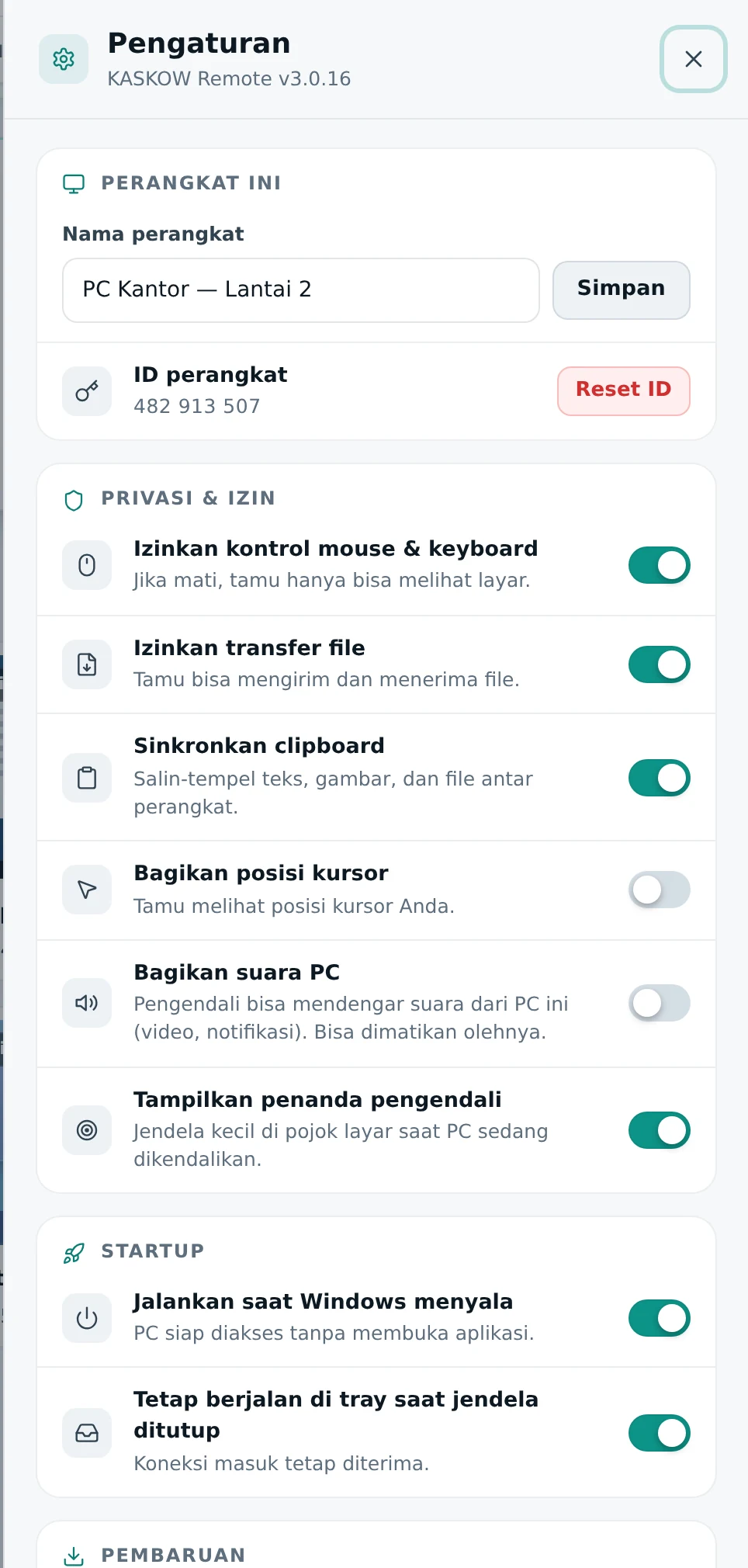
Privasi dan izin
| Pengaturan | Fungsinya |
|---|---|
| Izinkan kontrol mouse & keyboard | Jika dimatikan, tamu hanya bisa melihat layar |
| Izinkan transfer file | Tamu bisa mengirim dan menerima file |
| Sinkronkan clipboard | Salin-tempel teks, gambar, dan file antar perangkat |
| Bagikan posisi kursor | Tamu melihat posisi kursor Anda |
| Bagikan suara PC | Pengendali bisa mendengar suara dari PC ini (video, notifikasi); ia bisa mematikannya |
| Tampilkan penanda pengendali | Jendela kecil di pojok layar saat PC sedang dikendalikan |
Contoh pengaturan sesuai kebutuhan
| Situasi | Saran |
|---|---|
| Presentasi atau menunjukkan sesuatu | Matikan kontrol mouse & keyboard |
| Membantu kerabat yang awam | Biarkan kontrol menyala, aktifkan penanda pengendali |
| Komputer berisi dokumen sensitif | Matikan transfer file dan clipboard |
| Akses pribadi ke komputer sendiri | Semua boleh menyala, dengan password kuat |
Startup dan pembaruan
- Jalankan saat Windows menyala: komputer siap diakses tanpa membuka aplikasi.
- Tetap berjalan di tray saat jendela ditutup: sambungan masuk tetap diterima.
- Perbarui otomatis: versi baru diunduh dan dipasang di latar belakang.
Untuk komputer yang ingin dibuka kapan saja dari jauh, nyalakan dua pengaturan startup di atas. Kalau tidak, aplikasi harus dibuka manual lebih dulu.
Nama, ID, dan pemilik
Di bagian atas panel, Anda bisa mengubah nama perangkat (terlihat oleh yang terhubung) dan melihat ID perangkat. Tombol Reset ID membuat ID baru bila ID lama sudah tersebar ke orang yang tidak seharusnya. Perangkat juga bisa ditautkan ke akun pemilik agar muncul di tab Perangkat Saya.
Setelah mereset ID atau mengganti password, daftar tersimpan di perangkat lain perlu diperbarui. Lihat juga checklist keamanan akses jarak jauh.
Not every remote session needs full access. If you only want to show something, it is enough to let the other person view the screen. The app settings make that possible.
Screenshots use a sample view (fictional device names and IDs) for readability. What you see on your device will differ.
Opening settings
In the KASKOW Remote app on the target computer, click the gear icon at the top right. The Settings panel opens.
Privacy and permissions
| Setting | What it does |
|---|---|
| Allow mouse & keyboard control | If off, guests can only view the screen |
| Allow file transfer | Guests can send and receive files |
| Sync clipboard | Copy and paste text, images and files between devices |
| Share cursor position | Guests see your cursor position |
| Share PC sound | The controller can hear sound from this PC (video, notifications); they can turn it off |
| Show controller marker | A small window at the screen corner while the PC is being controlled |
Example settings for different needs
| Situation | Suggestion |
|---|---|
| A presentation or showing something | Turn off mouse & keyboard control |
| Helping a non-technical relative | Keep control on, enable the controller marker |
| A computer with sensitive documents | Turn off file transfer and clipboard |
| Personal access to your own computer | Everything can be on, with a strong password |
Startup and updates
- Run when Windows starts: the computer is ready to be accessed without opening the app.
- Keep running in the tray when the window is closed: incoming connections are still accepted.
- Update automatically: new versions are downloaded and installed in the background.
For a computer you want to open at any time from afar, turn on the two startup settings above. Otherwise the app must be opened manually first.
Name, ID and owner
At the top of the panel you can change the device name (visible to whoever connects) and see the device ID. Reset ID creates a new ID if the old one has reached people it should not have. The device can also be linked to an owner account so it appears in the My Devices tab.
After resetting the ID or changing the password, saved lists on other devices need updating. See also the remote access security checklist.